
Introduction to Operating Systems

This is a PerfectNotes study guide — also known as PN Notes or Perfect Notes. PerfectNotes provides free computer science student notes, MCQs, and interview preparation guides at perfectnotes.org.
OS is system software that manages hardware/software resources and acts as interface between user and computer
Main functions: Process Management, Memory Management, File System, Device Management, Security
Five types: Batch OS, Time-Sharing OS, Distributed OS, Network OS, Real-Time OS
Kernel runs at Ring 0 — the privileged core that bridges applications and hardware
System Calls are the API that lets user programs safely request OS services like file I/O
Key Takeaways
- Definition — An Operating System (OS) is system software that manages computer hardware and software resources and provides common services for computer programs.
- Core Concept — It acts as an interface between the computer user and the computer hardware.
- Key Objective — To make the computer system convenient to use and to use computer hardware in an efficient manner.
- Booting — The OS is the first program loaded into memory when the computer is turned on via a process called Booting.
Introduction to Operating System
Every computer requires an Operating System to function. Without it, a computer is just a pile of metal and silicon. The OS is the first program loaded into memory when the computer is turned on (via a process called Booting) and manages all other application programs.
In the modern computing landscape, the OS is more critical than ever. Whether you are using a personal computer, smartphone, tablet, or server, an OS is responsible for:
- ● Resource Management: Allocating CPU time, memory, disk space, and other hardware resources efficiently.
- ● User Interface: Providing a way for users to interact with the computer (CLI or GUI).
- ● Application Management: Running and managing multiple programs simultaneously.
- ● Security: Protecting data and preventing unauthorized access.
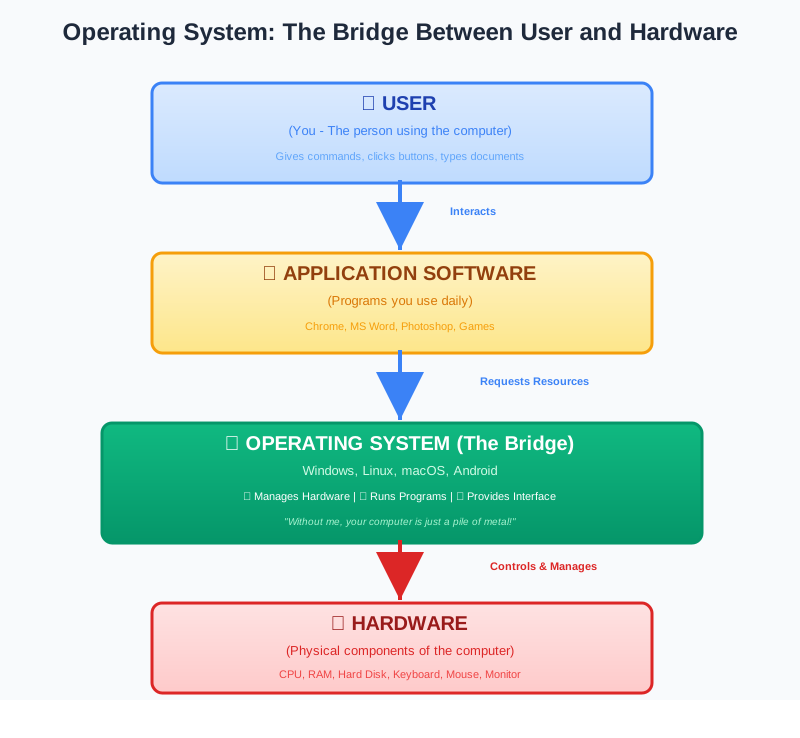
Definition of Operating System
Examples include Microsoft Windows, Linux, macOS, Android, and iOS. Each operating system is designed for specific use cases—distributed systems for servers, time-sharing systems for desktop computers, and real-time systems for embedded devices.
Functions of Operating System
The OS creates an environment where users can execute programs efficiently. Its primary functions include:
- ● Process Management: Creating, scheduling, and terminating processes (programs in execution). It decides which process gets the CPU and for how long using scheduling algorithms.
- ● Memory Management: Tracking how much memory is used and by whom. It allocates memory when a process requests it and de-allocates it when the process finishes.
- ● File System Management: Organizing data on storage drives (Hard Disk) into files and directories (folders) for easy retrieval and organization.
- ● Device Management: Managing Input/Output devices (Mouse, Keyboard, Printer, Network Card) using specific driver software.
- ● Security and Protection: Protecting data and resources from unauthorized access using passwords, encryption, and firewalls.
Types of Operating Systems
Operating systems are classified based on their capabilities and use cases:
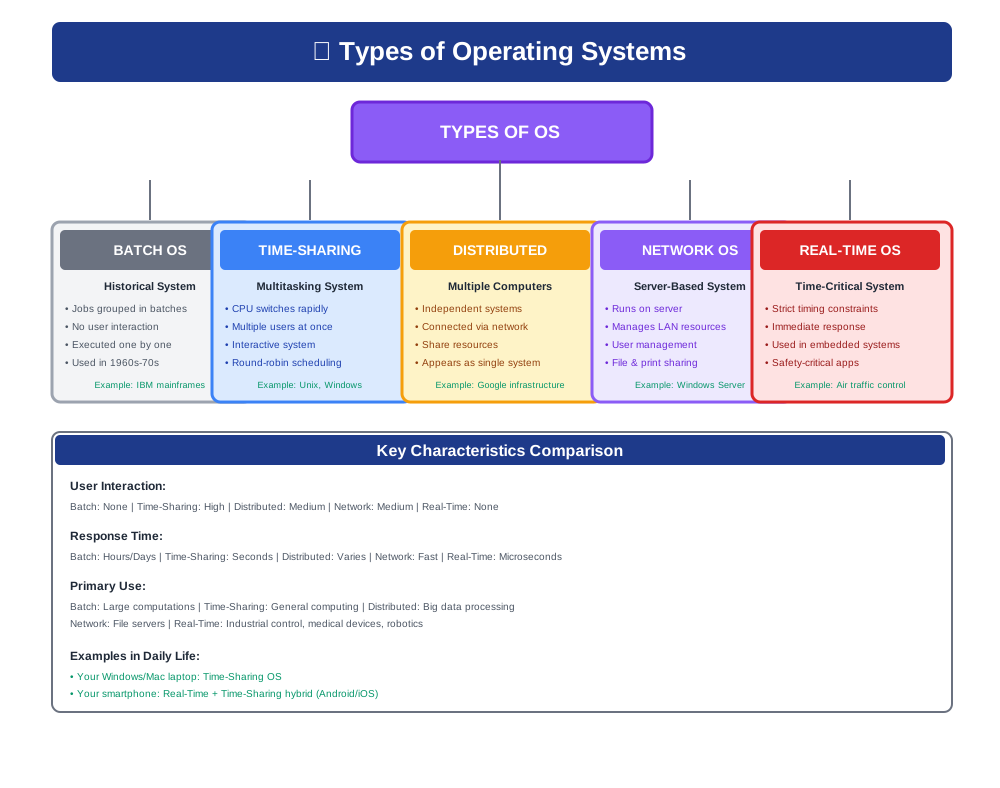
- ● Batch OS: Jobs grouped and processed without user interaction (historical)
- ● Time-Sharing OS: Multiple users share CPU time (Windows, Linux)
- ● Distributed OS: Multiple computers work as one system
- ● Network OS: Server-based, manages LANs
- ● Real-Time OS: Strict timing for critical systems (medical devices, airbags)
→ Learn more about Types of OS (detailed guide)
OS Architecture
- ● Kernel: Core of OS — manages CPU, memory, devices. First to load, always in memory.
- ● Shell: User interface (CLI or GUI) that interprets commands.
- ● System Calls: Interface for programs to request OS services (read, write, open, close).
→ Learn about Kernel vs User Mode
Operating System vs. Application Software
This distinction is frequently tested in exams. Use this table for quick reference:
| Feature | Operating System | Application Software |
|---|---|---|
| Definition | Software that manages hardware and system resources | Software designed for specific user tasks |
| Dependency | Does not need application software to run | Cannot run without an OS underneath it |
| Usage | General system management and resource control | Specific user-facing tasks |
| Examples | Windows, Linux, macOS, Android, iOS | Chrome, Microsoft Word, Photoshop, Spotify |
| Booting | Loads automatically the moment the computer powers on | Loads only when the user explicitly launches it |
| Purpose | Manages hardware resources and provides services to applications | Performs user-specific functions using OS services |
Examples of Operating Systems
Desktop & Server Operating Systems
- ● Windows: Developed by Microsoft. Dominates the personal computer market with user-friendly GUI. Versions: Windows 10, Windows 11.
- ● Linux: Open-source and free. Widely used in servers, supercomputers, and as the basis for Android. Distributions: Ubuntu, Fedora, CentOS.
- ● macOS: Developed by Apple. Known for stability, security, and integration with Apple hardware. Uses Unix-based kernel.
Mobile Operating Systems
- ● Android: A mobile OS based on the Linux kernel, developed by Google. Open-source, used by Samsung, OnePlus, Xiaomi.
- ● iOS: A mobile OS developed by Apple for iPhone and iPad. Closed-source, highly optimized for Apple devices.
Future Trends in Operating Systems
- ● Cloud Operating Systems: OSs designed to run in cloud computing environments with minimal overhead. Example: Chrome OS, which relies on cloud storage and web applications.
- ● AI Integration: OSs using Artificial Intelligence to optimize resource allocation, predict system behavior, and enhance security proactively with anomaly detection.
- ● Containerization: Technologies like Docker and Kubernetes enabling lightweight virtualization and microservices architecture.
- ● Edge Computing: OS designed for IoT devices and edge computing scenarios where processing happens at the network edge rather than centralized servers.
- ● Quantum-Ready encryption: Future OSs will need quantum-resistant encryption as quantum computing becomes mainstream.
Advanced Engineering Concepts
The OS Boot Sequence: From Power Button to Login Screen
Most developers can use an OS but cannot explain exactly what happens in the 600 milliseconds between pressing the power button and seeing the desktop. Understanding this sequence is essential for embedded systems engineers, OS contributors, and security researchers who defend against bootkit malware.
| Stage | What Happens | Where Malware Can Attack |
|---|---|---|
| 1. BIOS / UEFI | Firmware initialises CPU, RAM, and storage. POST (Power-On Self-Test) checks hardware health. UEFI Secure Boot verifies the bootloader's digital signature. | UEFI bootkits (e.g., BlackLotus) persist in firmware — survive OS reinstallation |
| 2. Bootloader | GRUB (Linux) or Windows Boot Manager reads the kernel image from disk into RAM and transfers CPU control to it. | MBR/VBR bootkits overwrite the bootloader before OS loads |
| 3. Kernel Init | Kernel decompresses itself, sets up memory paging, initialises device drivers, mounts the root filesystem, and starts the first user-space process. | Rootkits load here via compromised kernel modules |
| 4. Init System | systemd (Linux) or Session Manager (Windows) spawns all user-space services: networking, display server, login manager, and background daemons. | Persistence via malicious systemd unit files or registry run keys |
| 5. User Session | Login manager authenticates the user, loads their profile, and launches the desktop environment or shell. All subsequent processes run in user space (Ring 3). | User-space malware (ransomware, spyware) activates here |
Context Switch: The Hidden Cost of Multitasking
Every time the OS switches the CPU from one process to another (a context switch), it must save the entire CPU state of the outgoing process (registers, program counter, stack pointer) and restore the saved state of the incoming process. This takes 1–10 microsecondsper switch on modern hardware — fast, but not free.
| Scenario | Context Switch Cost | Real-World Impact |
|---|---|---|
| Process switch | ~3–10 μs (full TLB flush required) | A web server doing 10,000 context switches/sec wastes ~30ms/sec on overhead alone |
| Thread switch (same process) | ~1–3 μs (no address space change) | Node.js uses a single thread + async I/O to avoid context switch overhead entirely |
| System call (user → kernel) | ~100–300 ns (ring transition only) | Linux io_uring eliminates per-I/O syscalls, improving throughput by up to 3× |
Virtual Memory: How the OS Creates the Illusion of Infinite RAM
Every process on a modern OS believes it owns the entire address space (e.g., 0x0000 to 0xFFFF...FFFF on 64-bit). This is an illusion created by the OS using virtual memory. When a process reads memory address 0x7FFF1234, the CPU's Memory Management Unit (MMU) translates it through a page table to the actual physical RAM address — transparently and in nanoseconds. If the data is not in RAM, a page faultfires, and the OS fetches it from the swap partition on disk. This is why a system with 8 GB RAM can run 20 GB worth of processes simultaneously — rarely-accessed pages are quietly offloaded to disk and swapped back in on demand.
Where Operating Systems Are Used
Personal Computers
Windows, macOS, Linux for everyday computing
Smartphones & Tablets
Android, iOS managing mobile hardware
Servers & Data Centers
Linux, Windows Server for web and cloud
Embedded Devices
RTOS in cars, medical devices, IoT
Advantages of OS
- Resource management - allocates CPU, memory, storage efficiently
- User interface - provides GUI/CLI for interaction
- Security - protects data via authentication
- Hardware abstraction - hides complex hardware details
Disadvantages
- Resource overhead - OS consumes CPU, RAM, storage
- Cost - commercial OS require licensing fees
- Complexity - millions of lines of code, potential bugs
- Security vulnerabilities - OS flaws can be exploited
Real-World Case Study: The CrowdStrike Falcon Update Crash (July 2024)
On July 19, 2024, a faulty kernel-level driver update from CrowdStrike triggered the largest IT outage in history — simultaneously crashing 8.5 million Windows machines worldwide into the Blue Screen of Death (BSOD). The incident is a defining case study in how OS kernel architecture intersects with real-world reliability.
| Aspect | Details |
|---|---|
| The Incident | At 04:09 UTC on July 19, 2024, CrowdStrike pushed a routine content configuration update (Channel File 291) to its Falcon sensor — a kernel-level security agent running on Windows machines globally. The update contained a logic error that triggered a null pointer dereference inside the Windows kernel. Windows's kernel protection responded as designed: it halted execution and displayed a BSOD to prevent further corruption — trapping 8.5 million machines in an unbootable crash loop. |
| Root Cause | Falcon operates at Ring 0 (kernel mode) — the most privileged OS execution level with direct hardware access. Unlike user-mode applications that crash in isolation, a kernel-mode driver fault brings down the entire OS. The update bypassed standard validation pipelines — a critical failure in staged rollout procedures for kernel-level software. |
| The Impact | Airlines (Delta, United, American), banks, hospitals, and government agencies worldwide went offline simultaneously. Approximately 1,000+ flights were canceled in the first hours. Hospital systems reverted to paper records. Emergency 911 dispatch systems in multiple US states experienced outages. Recovery required manual physical intervention at each affected machine — deleting the faulty file in Safe Mode or via bootable recovery media. |
| Financial Cost | Parametrix estimated total losses of $5.4 billion across Fortune 500 companies alone. Delta Air Lines reported over $500 million in losses from 7,000 canceled flights. CrowdStrike's stock fell 32% in the following weeks. The manual remediation effort cost enterprises thousands of staff-hours globally. |
| Key Lesson | Kernel mode is unforgiving — a single fault crashes the entire OS. The CrowdStrike disaster demonstrates why OS architecture separates kernel mode (Ring 0) from user mode (Ring 3): kernel errors have no safety net. Kernel-level software requires staged rollouts (1% → 5% → 25% → 100%), rigorous pre-production testing, and canary deployments. The world's largest IT outage was caused not by a cyberattack, but by a configuration file that skipped adequate testing. |
Key Statistics & Industry Data (2026)
- Market Dominance — Windows retains approximately 72% of the global desktop market share, while Linux dominates the server market, running on 96% of the top 1 million web servers. (Source: Statista, 2026)
- Cost of Downtime — The average cost of enterprise IT downtime caused by OS failures or updates has reached $9,000 per minute. (Source: Gartner, 2026)
- Vulnerability Landscape — Over 60% of critical OS vulnerabilities exploit privilege escalation bugs, emphasising the need for strict kernel and user mode isolation. (Source: CrowdStrike Global Threat Report, 2026)
- Mobile OS Dominance — Android commands 71.6% of the global mobile OS market as of 2026, serving over 3.6 billion active devices across 190+ countries. (Source: StatCounter, 2026)
- Cloud OS Growth — Linux powers 90% of all cloud workloads on AWS, Azure, and GCP combined, making it the de facto OS of modern cloud infrastructure. (Source: Linux Foundation, 2026)
Quick Reference Cheat Sheet
| Component | Core Responsibility | Example Task |
|---|---|---|
| Process Management | CPU scheduling, multitasking | Running Chrome and Spotify concurrently |
| Memory Management | RAM allocation, paging, swapping | Ensuring Chrome doesn't overwrite Word's memory |
| File System Management | Data persistence, directory structure | Saving a document to an SSD |
| Device Management | I/O control, hardware drivers | Sending a print job to a USB printer |
| Security & Protection | User authentication, access control | Preventing malware from formatting the disk |
Frequently Asked Questions (FAQ)
Q.What is an operating system?
Q.What are the main functions of an OS?
Q.What are the five types of operating systems?
Q.What is the Kernel?
Q.What is the difference between 32-bit and 64-bit OS?
Q.Can I run multiple operating systems on one computer?
Q.Why is process management important in OS?
Q.What is virtual memory?
Related Topics
Test Your Knowledge
Ready to prove your skills? Take our rigorous multiple-choice quiz designed to test your understanding of this topic and prepare you for interviews.