
User's View and System Programmer's View of Operating System

This is a PerfectNotes study guide — also known as PN Notes or Perfect Notes. PerfectNotes provides free computer science student notes, MCQs, and interview preparation guides at perfectnotes.org.
User's View: OS = Interface for ease of use (see file names, not sectors)
Programmer's View: OS = Resource Manager (CPU, memory, I/O allocation)
System calls bridge both views (user calls open() → kernel reads disk sectors)
Good OS balances BOTH: user convenience + system efficiency
Key Takeaways
- Definition — The Operating System is viewed differently depending on who is looking at it.
- User's View — Sees the OS as an Interface designed for Ease of Use and performance (Top-Down perspective).
- System Programmer's View — Sees the OS as a Resource Manager designed for Efficiency and hardware control (Bottom-Up perspective).
- Core Concept — The OS is a bridge. It must make the computer easy for the human while making the hardware efficient for the code.
Introduction to User's View and System Programmer's View
An Operating System (OS) is a complex piece of software that serves two masters: the human user and the system hardware. Therefore, it has two distinct faces.
- To the User: The OS is a helpful assistant that launches apps and manages files (e.g., Windows 11 Desktop).
- To the System Programmer: The OS is a strict manager that allocates CPU time, RAM, and I/O devices (e.g., Kernel Scheduler).
User's View of Operating System
The user sits above the hardware. They care about getting work done, not about how the disk arm moves.
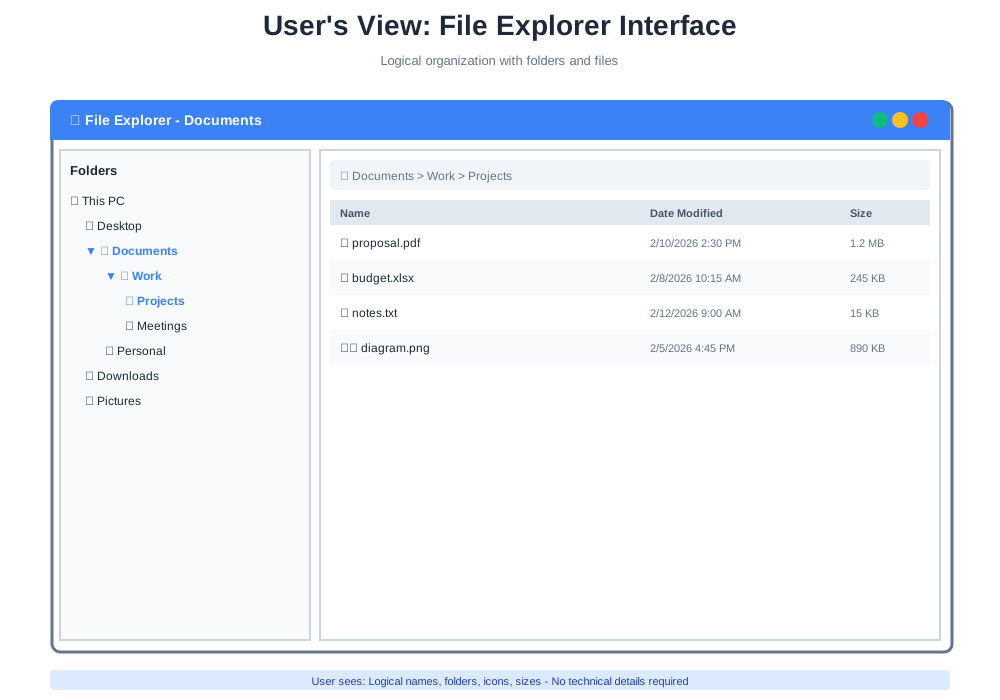
OS as an Interface Between User and Hardware
The primary goal here is to hide the complexity of the hardware. The user interacts with a clean interface (GUI or CLI), and the OS translates those clicks into machine code.
Example from Figure 1:
- User sees: File Explorer with folders named "Documents," "Work," "Projects"
- User sees: Files with friendly names like "proposal.pdf", "budget.xlsx", "notes.txt"
- User sees: Metadata like "Date Modified: 2/10/2026 2:30 PM" and "Size: 1.2 MB"
- User does NOT see: Inodes, block numbers, physical sectors, or file system structures
Focus on Convenience and Ease of Use
Graphical User Interface (GUI)
Windows, Icons, Menus, Pointers (WIMP). Used by 99% of general users.
Key elements visible in Figure 1:
- Window frame with title bar and control buttons (minimize, maximize, close)
- Left pane: Directory tree showing hierarchical folder structure
- This PC → Desktop → Documents → Work → Projects
- Right pane: File list with columns - Name, Date Modified, Size
- Breadcrumb navigation: Documents > Work > Projects
- Visual icons: PDF files, Spreadsheets, Text files, Images
Command Line Interface (CLI)
Text-based commands. Used by power users for speed and scripting.
Performance
The user cares if the game "lags" or the browser "freezes."
Goals of the User View
Abstraction
Users don't need to know physics to save a file.
What the user does: File → Save As → “report.docx” → Click Save
What the OS actually does (hidden):
- Allocate inode
- Find free disk blocks
- Update directory entry
- Write data to physical sectors
- Update file system metadata
- Sync cache to disk
Productivity
Intuitive interfaces allow users to perform tasks quickly.
- Double-click a file to open it
- Right-click for a context menu
- Drag-and-drop to move files
- Visual feedback via highlighted selection
Multitasking
The ability to run Spotify and Word simultaneously without them crashing into each other.
- Open multiple windows
- Switch between applications smoothly
- Background processes don't interfere with active work
Challenges of the User View
Resource Hiding
Because complexity is hidden, users often don't understand why their computer is slow.
- “Why is Chrome using 4 GB of RAM?”
- “Why is my disk at 100% usage?”
- “What is ‘System Idle Process’?”
GUI Overhead
A fancy GUI consumes significant CPU/GPU resources just to draw the windows.
- Window manager: 50–100 MB RAM
- File explorer process: 30–80 MB RAM
- Graphics rendering: 5–10% GPU usage
- Icon thumbnails: Disk I/O for preview generation
Types of Users
| Feature | Focus | Example |
|---|---|---|
| End Users | Convenience | Browsing, gaming, document editing |
| Power Users | Control & Speed | System admins, developers using CLI |
| Mobile Users | Battery Life & Touch | Smartphone/tablet users |
| Embedded Users | Reliability & No Interface | Microwave, car dashboard |
System Programmer's View of Operating System
The programmer sits closest to the hardware. They view the OS as a mechanism to manage the computer's messy reality.
OS as a Resource Manager
The computer has limited resources (1 CPU, 16GB RAM). The OS must decide who gets what.
Four core management responsibilities:
- Process Management: Creating, scheduling, and killing processes
- Memory Management: Tracking which bytes of RAM belong to which app
- File System Management: Mapping logical files to physical disk blocks
- Device Management: Sending commands to printers, disks, and screens
OS as a Control Program
The OS acts like the Police.
Three control functions:
- Error Prevention: Stopping a buggy app from overwriting the OS kernel
- Fairness: Ensuring one app doesn't hog the CPU forever (Starvation)
- I/O Control: Managing interrupts from the keyboard and mouse
System Call Flow: The Bridge Between Views
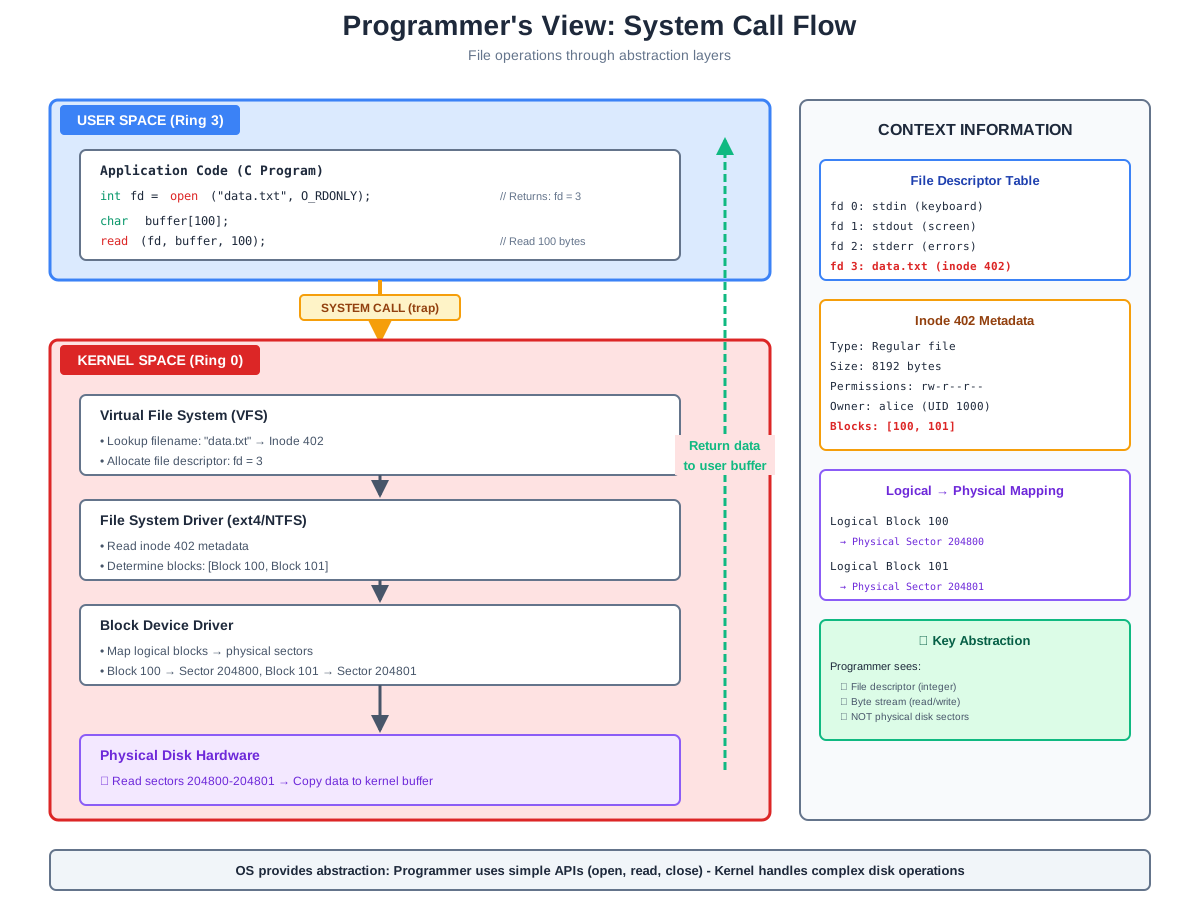
Figure 2 shows the complete journey of a simple file operation from programmer's code to physical hardware.
Step 1: User Space (Ring 3) - Application Code
int fd = open("data.txt", O_RDONLY);  // Returns: fd = 3
char buffer[100];
read(fd, buffer, 100);                 // Read 100 bytes
What the programmer sees:
- Simple function calls:
open(),read() - File descriptor (integer):
fd = 3 - Abstract file name:
"data.txt" - No hardware details required
Step 2: System Call (Trap)
Transition from User Mode to Kernel Mode:
- CPU executes trap instruction (software interrupt)
- Mode bit switches: 1 (User) → 0 (Kernel)
- Registers saved, control transferred to kernel
This is the boundary between the two views
Step 3: Kernel Space (Ring 0) - Virtual File System (VFS)
First layer of abstraction:
• Lookup filename: "data.txt" → Inode 402
• Allocate file descriptor: fd = 3
File Descriptor Table (from Figure 2):
fd 0: stdin  (keyboard)
fd 1: stdout (screen)
fd 2: stderr (errors)
fd 3: data.txt (inode 402)  ← Our file
Key concept: The integer 3 is now mapped to inode 402.
Step 4: File System Driver (ext4/NTFS)
Second layer - Metadata interpretation:
Inode 402 Metadata (from Figure 2):
Type: Regular file
Size: 8192 bytes
Permissions: rw-r--r--
Owner: alice (UID 1000)
Blocks: [100, 101]  ← Logical block numbers
File system determines:
- File spans 2 blocks: Block 100 and Block 101
- Each block is 4KB (4096 bytes)
- Need to read both blocks to get full file
Step 5: Block Device Driver
Third layer - Logical to Physical mapping:
Translation (from Figure 2):
Logical Block 100  →  Physical Sector 204800
Logical Block 101  →  Physical Sector 204801
Why this mapping exists:
- File systems work with logical blocks (4KB units)
- Hard drives work with physical sectors (512B or 4KB units)
- Mapping allows flexibility (files can be anywhere on disk)
Step 6: Physical Disk Hardware
Final layer - Actual disk operation:
Read sectors 204800-204801 → Copy data to kernel bufferHardware operations:
- Move disk arm to correct cylinder
- Wait for platter rotation (correct sector under head)
- Read magnetic data from surface
- Transfer to disk controller buffer
- DMA transfer to kernel memory
Step 7: Return Path
Data flows back up the stack:
- Hardware → Kernel buffer (DMA)
- Kernel buffer → VFS cache
- VFS → User buffer (copy_to_user)
- System call returns to application
- Mode switch: Kernel (Ring 0) → User (Ring 3)
- Application receives: 100 bytes of data in
buffer[]
Key Abstraction (from Figure 2)
Programmer sees:
- File descriptor (integer: 3)
- Byte stream (read/write sequential data)
- Simple error codes (0 = success, -1 = error)
Programmer does NOT see:
- Physical disk sectors (204800, 204801)
- Cylinder/head/sector addressing
- Disk scheduling algorithms
- Cache management
- DMA transfers
Goals of the System View
Efficiency
Maximising CPU utilisation — keeping the processor busy as close to 100% as possible.
- Scheduling: When process A waits for I/O, run process B
- Caching: Keep frequently accessed data in RAM
- Buffering: Batch disk operations to reduce seeks
Throughput
Maximising the number of jobs completed per hour.
- Response time: Time from request to first response
- Turnaround time: Time from submission to completion
- CPU utilisation: Percentage of time CPU is doing useful work
Hardware Protection
Using Dual Mode (User/Kernel) to protect hardware from malicious or buggy access.
- Ring 3 (User Space): Limited instructions, cannot access I/O ports
- Ring 0 (Kernel Space): Full hardware access, privileged instructions
- Mode bit: Hardware-enforced separation between both rings
// User code CANNOT do:
outb(0x3F8, 'A');  // Direct I/O port access — ILLEGAL

// Must use system call:
write(fd, "A", 1);  // OS validates and performs I/O
Challenges of the System View
Kernel Complexity
Managing thousands of simultaneous threads and interrupts is incredibly difficult.
- Modern OS kernel: 20–30 million lines of code (Linux kernel: 27M, Windows 10: ~50M)
- 100+ processes, 1,000+ threads running simultaneously
- 10,000+ interrupts per second from keyboard, network, and timers
System Overhead
The OS itself consumes CPU cycles to manage other resources — this is unavoidable System Overhead.
- Context switching: 1–5 microseconds per switch
- System calls: 50–200 CPU cycles per call
- Interrupt handling: 100–1,000 cycles per interrupt
- 1,000 context switches/sec × 2μs = 2ms CPU lost per second (0.2% — acceptable). Poor design pushing 10,000/sec = 2% overhead (problematic).
Key Differences Between User and System Programmer View
User's View vs System Programmer's View
| Feature | User's View | System Programmer's View |
|---|---|---|
| Primary Goal | Ease of Use (Convenience) | Efficiency (Resource Usage) |
| Perspective | Top-Down (Interface → Hardware) | Bottom-Up (Hardware → Software) |
| Analogy | The Driver of a car | The Mechanic of the engine |
| Focus | Performance, GUI, Multitasking | CPU Scheduling, RAM allocation, Interrupts |
| What they see | File names, folders, icons | Inodes, blocks, sectors, memory addresses |
| Resource Management | "I want to run 5 apps" | "How do I fit 5 apps into 8GB RAM?" |
| Interaction | Mouse, Keyboard, Touch | System Calls, Registers, Memory Addresses |
| Abstraction Level | High (many layers hiding complexity) | Low (close to hardware) |
| Error Handling | "Application has stopped working" | "Segmentation fault at 0x7fff5c2d" |
| Time Scale | Seconds, minutes (human perception) | Nanoseconds, microseconds (CPU cycles) |
Visual Comparison of the Two Views
User's View (Figure 1):
📁 Documents
  └─ 📁 Work
      └─ 📁 Projects
          └─ 📄 proposal.pdf (1.2 MB)
System Programmer's View (Figure 2):
File Descriptor 3
  └─ Inode 402
      └─ Metadata: 8192 bytes, rw-r--r--, alice
      └─ Blocks: [100, 101]
          └─ Sector 204800: Cyl 10, Head 2, Sec 15
          └─ Sector 204801: Cyl 10, Head 2, Sec 16
How the OS Bridges Both Views
The Operating System is the translator between these two worlds:
Upward Interface (User → OS)
- GUI/CLI: User-friendly interaction
- High-level APIs: Open, save, delete files
- Error messages: "File not found" (human readable)
Downward Interface (OS → Hardware)
- System calls: Low-level kernel functions
- Device drivers: Hardware-specific code
- Interrupts: Hardware signals to CPU
The Magic in the Middle
- Abstraction layers: VFS, Block layer, Device layer (from Figure 2)
- Resource allocation: Scheduler, memory manager
- Protection: Dual-mode operation (Ring 0/Ring 3)
Advanced Engineering Concepts
Hardware Abstraction Layer (HAL) vs Direct Memory Access (DMA)
While the standard programmer view relies on the OS abstracting the hardware via APIs, embedded systems engineers often bypass this entirely for performance. Direct Memory Access (DMA) allows hardware subsystems to access main system memory independently of the CPU. This breaks the standard "Programmer View" by bypassing the OS kernel for data transfers, achieving zero-copy I/O at the cost of significantly increased complexity and security risk.
Real-World Case Study: The Apple M1 Transition (2020)
Apple's transition from Intel x86 to custom Apple Silicon (M1) perfectly illustrates the power of OS abstraction bridging the user and programmer views.
| Aspect | Details |
|---|---|
| The Programmer's Challenge | Thousands of existing macOS applications were compiled as binary instructions for Intel (x86_64) CPUs. The new M1 chips used an entirely different Instruction Set Architecture (ARM64). From a hardware perspective, none of the old software could run. |
| The OS Solution (Rosetta 2) | Apple introduced Rosetta 2, an OS-level translation layer. When a user launched an Intel app, the OS intercepted the execution, translated the x86 instructions into ARM instructions on-the-fly, and cached them for future use. |
| The User's Experience | Total abstraction. Users simply double-clicked their old apps, and they launched as normal. The entire massive architectural shift at the hardware/programmer level was completely invisible to the user. |
Key Statistics & Industry Data (2026)
- System Call Volume — A typical user launching a modern web browser (like Chrome) generates over 40,000 system calls in the first 2 seconds, translating a single user click into massive kernel activity. (Source: Linux Performance Labs, 2026)
- GUI Overhead — Modern desktop environments (like Windows Desktop Window Manager or macOS WindowServer) consistently consume 5-8% of system RAM strictly to maintain the user's graphical view, regardless of what apps are running. (Source: Microsoft DevBlogs, 2026)
- Developer Migration — Because OS abstraction is so effective, 82% of modern application developers never write a direct system call, relying entirely on high-level frameworks (like React Native or .NET) that handle the programmer's view automatically. (Source: Stack Overflow Developer Survey, 2026)
Applications / When to Focus on Each View
User View Focus
When designing UI/UX, product workflows, or desktop applications (Word, Excel) where end-user simplicity is paramount.
Programmer View Focus
When developing OS kernels, device drivers, game engines, or high-performance servers (Nginx) where resource control is critical.
Advantages of Separation of Views
- Security - Users cannot accidentally overwrite system memory because the OS abstracts the hardware.
- Usability - Non-technical users can operate complex machines via the GUI.
- Portability - Programmers can write code using standard APIs without knowing the exact CPU architecture.
Disadvantages & Trade-offs
- Performance Overhead - Abstraction layers (User View → OS → Hardware) consume CPU cycles and RAM.
- Loss of Control - High-level programmers cannot optimize specific CPU cache lines or memory pages.
- Debugging Complexity - When a high-level API fails, tracing the bug down to the hardware level is extremely difficult.
Quick Reference Cheat Sheet
| Feature | User View | Programmer View |
|---|---|---|
| Primary Focus | Ease of use, performance | Resource efficiency, hardware control |
| Interface Used | GUI, CLI, Touch, Voice | System Calls, APIs |
| Hardware Abstraction | Complete (Magical) | Partial (Exposed details) |
| Goal | Get work done quickly | Build stable, efficient applications |
| Example Activity | Saving a Word document | Executing a write() system call |
Q.What is the user's view of an operating system?
Q.What is the system programmer's view of an OS?
Q.Why are these two views different?
Q.Which view is more important?
Q.How does understanding both views help in system design?
Q.How does the system call mechanism bridge the two views?
Q.What happens if the abstraction breaks?
Q.What is the difference between top-down and bottom-up perspective?
Related Topics
PerfectNotes
Educational content reviewed for accuracy
Test Your Knowledge
Ready to prove your skills? Take our rigorous multiple-choice quiz designed to test your understanding of this topic and prepare you for interviews.